


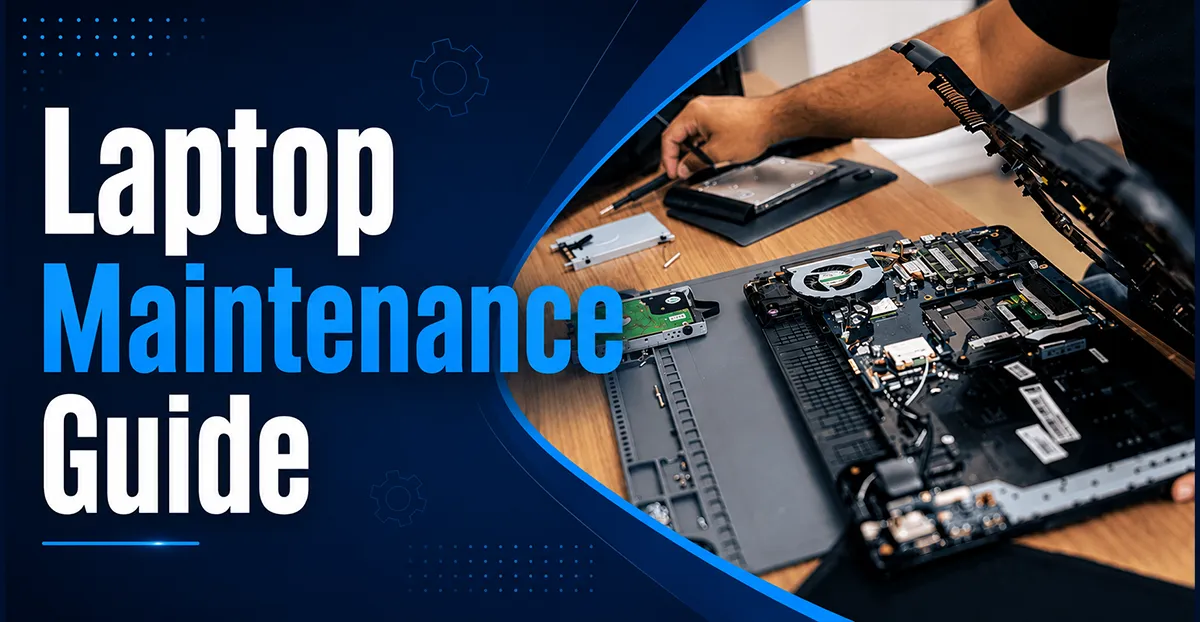
Laptops have become essential tools for work, study, business, gaming, and entertainment. However, over time, users may experience problems like slow performance, overheating, battery issues, fan noise, storage problems, or software errors.
Regular maintenance and knowing basic troubleshooting methods can help extend your laptop’s lifespan, improve speed, and avoid unnecessary repair costs. For advanced issues such as motherboard failures, hardware damage, liquid spills, or major component upgrades, it’s best to seek professional laptop repair services to ensure accurate diagnosis and reliable repairs.
In this laptop maintenance guide, we cover the most common laptop problems and step-by-step solutions.
1. How to Clean a Laptop Screen Properly?
A dirty laptop screen can affect visibility and your overall experience. Dust, fingerprints, and oil marks should be cleaned regularly to maintain a clear display.
Steps to Clean Laptop Screen:
- Turn off your laptop and unplug the charger.
- Use a microfiber cloth to remove dust.
- Apply a small amount of screen cleaning solution or liquid to the cloth (never directly on the screen).
- Gently wipe the screen in circular motions.
- Allow the display to dry before turning it on.
Avoid:
- Using paper towels
- Spraying water directly on the screen
- Using harsh chemicals like alcohol-based cleaners
Tip: Clean your laptop screen once every few weeks to maintain display quality.
2. How to Fix a Slow Laptop?
A slow laptop is one of the most common problems users face. Performance usually decreases due to unnecessary programs, insufficient storage, overheating, or outdated hardware.
Ways to Make Your Laptop Faster:
Remove Unnecessary Programs
Uninstall applications you no longer use.
Windows: Settings → Apps → Installed Apps → Remove unwanted programs
Disable Startup Applications
Too many startup programs slow down boot time.
Open: Task Manager → Startup Apps → Disable unnecessary programs
Free Up Storage Space
Keep at least 15–20% of your SSD/HDD free for better performance.
Remove: Temporary files | Old downloads | Unused software
Upgrade RAM
If your laptop frequently freezes while multitasking, increasing RAM can improve performance.
For modern usage:
- 8GB RAM Laptop: Basic use
- 16GB RAM Laptop : Recommended for most users
- 32GB RAM Laptop: Professional work, editing, gaming
Upgrade HDD to SSD
Replacing an old HDD with an SSD can significantly improve:
- Boot speed
- Application loading
- Overall responsiveness
3. How to Stop Laptop Fan Noise?
A noisy laptop fan usually indicates overheating, dust buildup, or heavy system usage.
Solutions: Check CPU Usage
Open: Task Manager → Processes → Check CPU usage and then Close unnecessary applications using high resources.
Ways to Improve Cooling:
- Keep laptop on a hard surface
- Avoid using it on beds or blankets
- Clean ventilation areas
- Use a cooling pad for heavy workloads
Reduce Background Applications: Disable unnecessary applications running in the background.
4. How to Clean Laptop Fan?
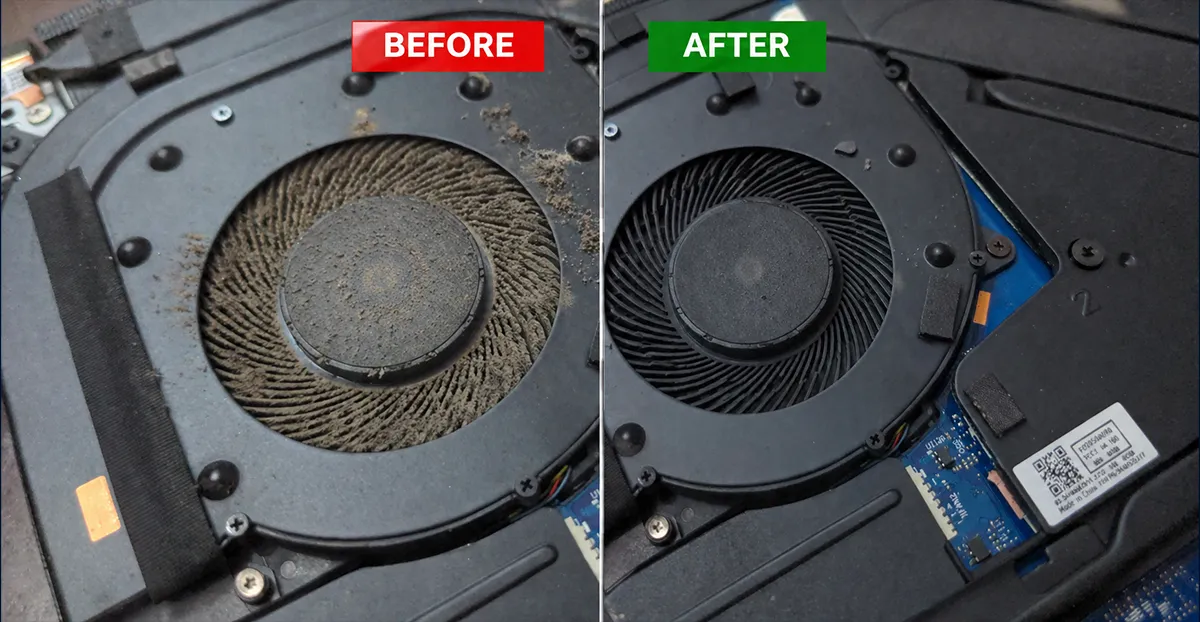
Dust inside the laptop blocks airflow and causes overheating. So its a good idea to clean up laptop fan at regular intervals.
Basic Laptop Fan Cleaning:
- Shut down your laptop.
- Disconnect power.
- Clean external vents using compressed air.
- Blow air in short bursts.
Professional Laptop Fan Cleaning:
- Open the laptop back panel for deep cleaning.
- Remove dust from fan and heatsink.
- Replace thermal paste if required.
Recommendation: Professional cleaning is recommended every 1–2 years depending on usage and environment.
5. How to Install Memory (RAM) in a Laptop?
Adding RAM is one of the easiest ways to improve laptop performance.
Before Installing RAM:
- Check Maximum supported RAM
- RAM type (DDR4/DDR5)
- Available RAM slots
Installation Steps:
- Shut down the laptop.
- Remove charger.
- Open the back cover.
- Insert compatible RAM module.
- Secure the cover.
- Turn on the laptop and check memory.
Check Installed RAM:
Windows: Settings → System → About → Installed RAM
6. How to Restart Laptop Using Keyboard?
If your mouse is not working, you can restart your laptop using keyboard shortcuts.
Method 1:
Press: Ctrl + Alt + Delete
Then: Press Tab until Power option is selected & Choose Restart
Method 2: From desktop:
Press: Alt + F4
Then: Select Restart & Press Enter in your desktop.
7. How to Connect External Monitor to Laptop?
Connecting an external monitor improves productivity for office work, editing, gaming, and multitasking.
Steps to Connect External Monitor to Laptop:
- Check available ports: HDMI | DisplayPort | USB-C
- Connect the monitor cable.
- Press: Windows + P
- Choose: Duplicate – Extend – Second screen only
- Then the Monitor will be connected to laptop
8. How to Check Laptop Battery Health?
Battery performance decreases naturally over time. So its good to regularly monitor laptop battery health.
Check Battery Health in Windows:
Open Command Prompt and type: powercfg /batteryreport
Windows will generate a battery report showing:
- Battery capacity
- Battery usage history
- Battery health status
Tips to Extend Battery Life:
- Avoid keeping battery at 0%
- Avoid extreme heat
- Use original charger
- Enable battery saver mode
9. How to Reset a Laptop?
Resetting removes software problems and restores Windows settings.
Windows Reset Steps:
Settings – System – Recovery – Reset This PC
Choose: Keep My Files
- Removes apps and settings
- Keeps personal files
Choose: Remove Everything
- Complete factory reset
Tip: Always backup important files before resetting.
10. How to Screenshot on Laptop?
Windows Screenshot Shortcuts:
- Full Screen Screenshot: Windows + PrtSc (Automatically saves the screenshot).
- Select Area Screenshot: Windows + Shift + S (Allows you to capture a specific area.).
- Active Window Screenshot: Alt + PrtSc (Captures the current window).
Additional Laptop Maintenance Guide
1. Why is my laptop overheating?
Laptop overheating is a common problem that can reduce performance, cause unexpected shutdowns, and even shorten the lifespan of internal components if left unchecked. It usually occurs due to blocked air vents, dust buildup inside the cooling system, heavy applications that put constant load on the CPU or GPU, poor airflow around the laptop, or using the device on soft surfaces like beds or cushions that block ventilation.
To fix overheating, regularly clean the cooling fans and air vents, ensure the laptop has enough space for proper airflow, close unnecessary background applications, and use a cooling pad for additional cooling during intensive tasks such as gaming, video editing, or programming. Keeping your laptop clean and well-ventilated helps maintain stable temperatures and improves overall performance.
2. Why does my laptop battery drain quickly?
A laptop battery can drain quickly for several reasons, including high screen brightness, too many background applications running at once, an aging battery with reduced capacity, or using high-performance power settings that consume more energy. Resource-intensive tasks such as gaming, video editing, and multiple browser tabs can also increase battery usage.
To improve battery life, lower the screen brightness, enable Battery Saver or Power Saver mode, close unnecessary background applications, disconnect unused peripherals, and check your battery’s health. If the battery health is poor or the battery no longer holds a charge effectively, replacing it with a genuine compatible battery is the best long-term solution.
3. How to update laptop drivers?
Update drivers through: Windows Update – Advanced Options – Optional Updates or download drivers from your laptop manufacturer’s official website.
4. How often should I clean my laptop?
Regular laptop cleaning helps maintain performance, prevents overheating, and extends the lifespan of your device. The screen should be cleaned every few weeks using a microfiber cloth to remove dust, fingerprints, and smudges. The keyboard should be cleaned at least once a month to remove dirt, crumbs, and debris that can affect typing. Internal fan and air vent cleaning is recommended every 6–24 months, depending on your environment and usage, more frequently if you use your laptop in dusty areas or for gaming and other high-performance tasks.
If your laptop continues to overheat despite cleaning, consider replacing the thermal paste every few years, as it can dry out over time and reduce cooling efficiency. Routine maintenance keeps your laptop running cooler, quieter, and more reliably.
5. How to improve laptop performance for gaming?
Improving laptop performance for gaming requires both software optimization and proper hardware maintenance. Start by keeping your graphics drivers and Windows updates current to ensure the best compatibility and performance in the latest games. Switch your laptop to High Performance or Performance Mode when gaming, and keep it plugged into the charger for maximum power. Maintain proper cooling by cleaning the air vents and fans regularly, using the laptop on a hard surface, and considering a cooling pad to prevent thermal throttling.
If your laptop struggles with multitasking or newer games, upgrading the RAM can improve performance and reduce stuttering. Finally, install your games on an SSD instead of a traditional hard drive to enjoy faster loading times, smoother game updates, and quicker overall system responsiveness.
6. How to protect a laptop and increase lifespan?
Protecting your laptop and following good maintenance practices can significantly extend its lifespan and keep it performing reliably for years. Keep your operating system, drivers, and software updated to improve security, stability, and performance. Prevent overheating by ensuring proper airflow, cleaning dust from the vents and fans regularly, and avoiding use on soft surfaces that block ventilation. Carry your laptop in a high-quality padded laptop bag to protect it from drops and impacts, and keep it away from liquids to prevent accidental damage.
Always use a genuine or manufacturer-approved charger to avoid power-related issues and battery damage. Additionally, maintain sufficient free storage space by removing unnecessary files and applications, as a nearly full drive can slow down your laptop. With regular care and proper handling, your laptop will remain faster, more reliable, and last much longer.
Final Words
Proper laptop maintenance plays a vital role in keeping your device fast, reliable, and efficient over time. Regular cleaning, software updates, and timely hardware maintenance can improve performance, prevent common problems, and extend your laptop’s lifespan. Whether your laptop is running slowly, overheating, making unusual fan noise, experiencing battery drain, or showing other performance issues, following the right troubleshooting and maintenance practices can help resolve most everyday problems and keep your laptop operating at its best.


